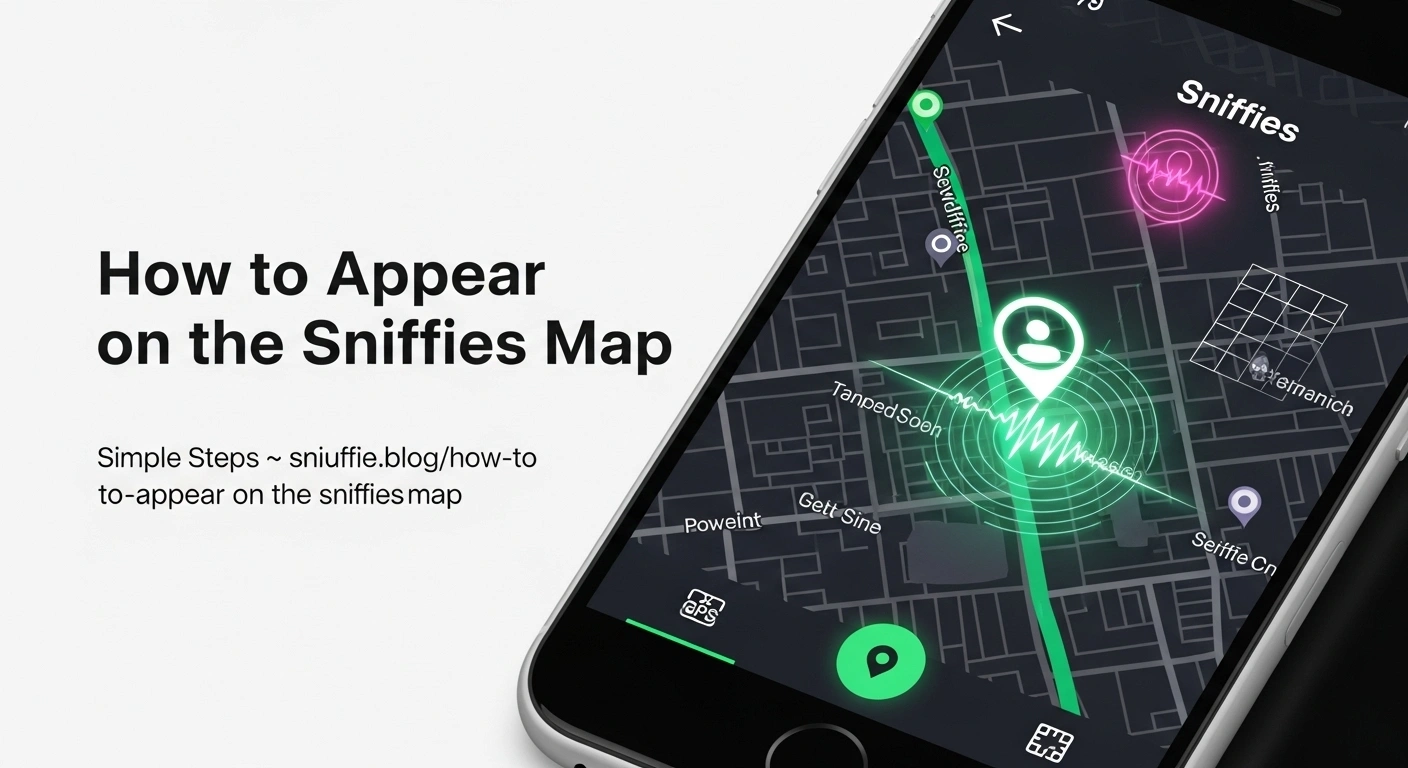
How to Appear on the Sniffies Map? Easy Steps
Looking to connect with like-minded individuals on Sniffies? If your profile isn’t showing up, this guide explains how to appear on the Sniffies map using easy steps, whether you’re on Android, iPhone, or using the Sniffies web version.
Disclaimer: This guide is not affiliated with Sniffies.com. It is for educational purposes to help users enhance visibility and connection safely on the platform.
What Is the Sniffies Map?
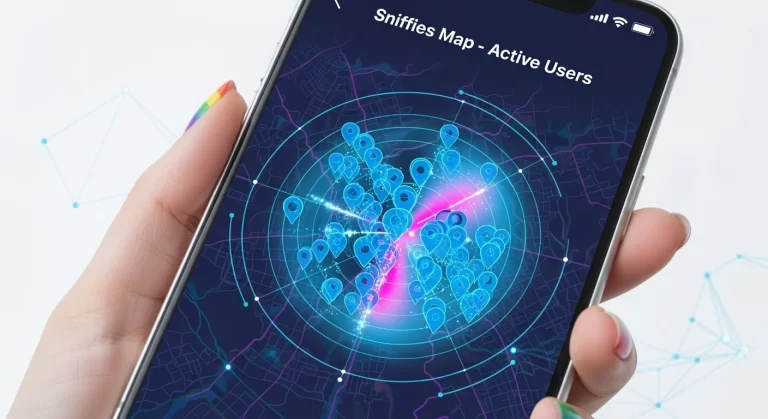
The Sniffies Curious Map is a live, interactive map-based interface designed for the LGBTQ+ community to discover nearby users, explore cruising places, and make casual or meaningful connections in real time.
It uses satellite images, real-time updates, and your exact location to show online profiles around you.
How to Appear on the Sniffies Map: Quick Fix Checklist
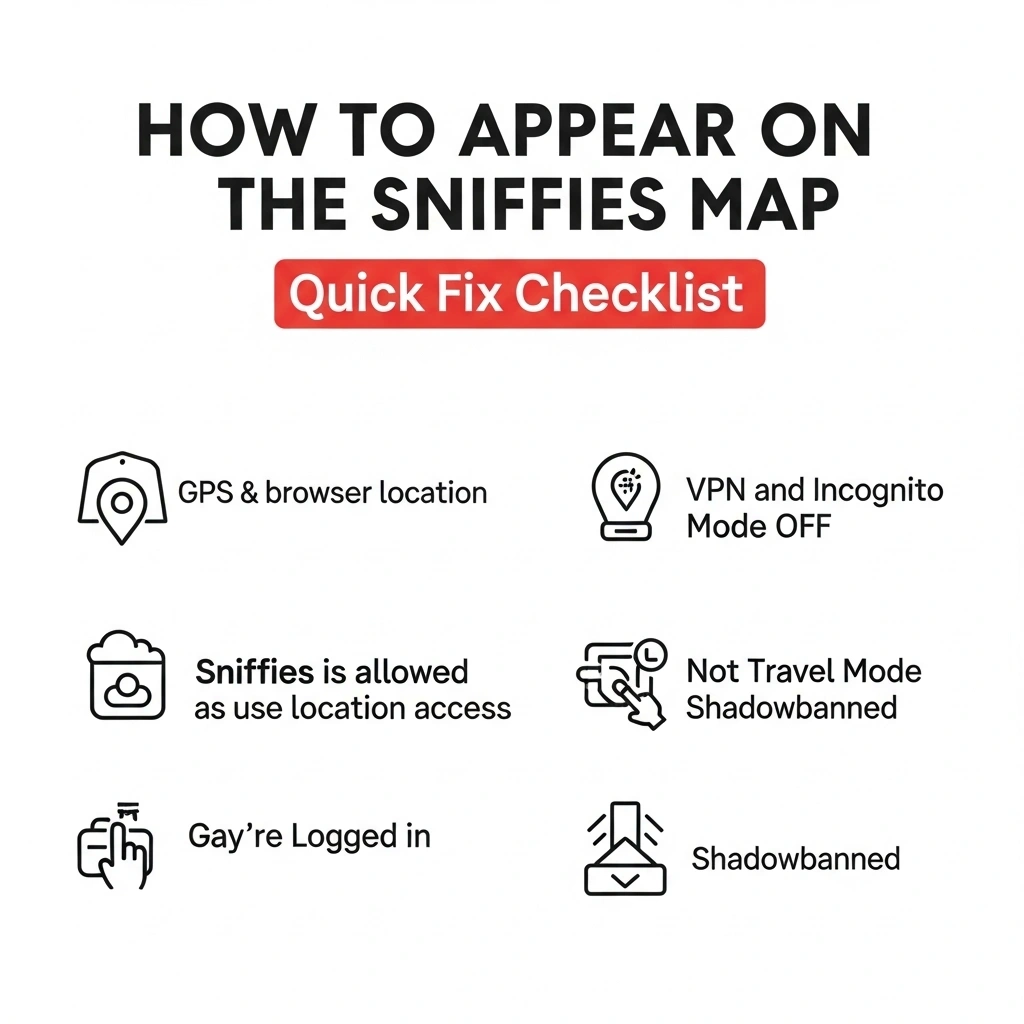
Visibility Checklist:
- GPS & browser location are enabled
- VPN and Incognito Mode are OFF
- Sniffies is allowed to use location access
- You’re logged in
- You’re not in Travel Mode or shadowbanned
Step-by-Step Guide to Fix Visibility
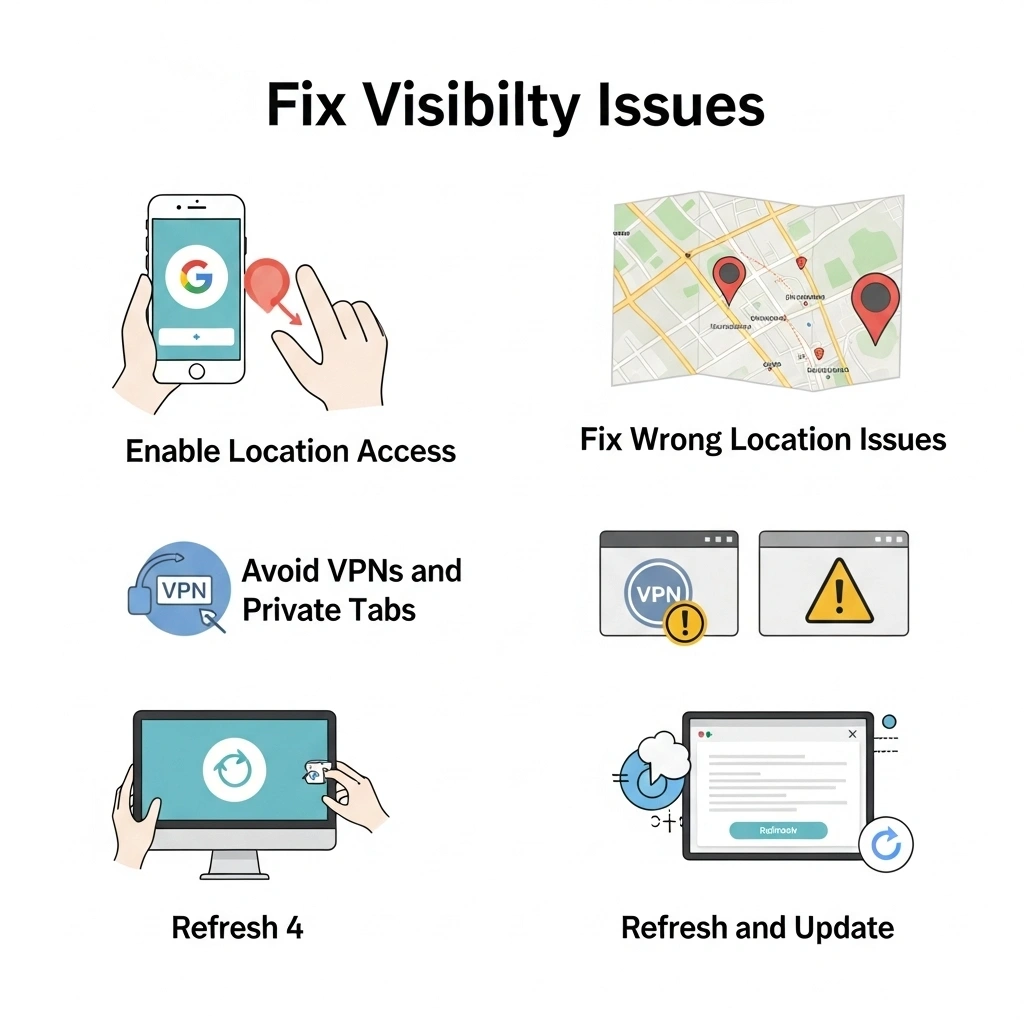
Step 1: Enable Location Access
iPhone Users
Go to: Settings → Privacy → Location Services → Safari
Set to: “While Using the App”
(Solves Sniffies location settings iPhone issues)
Android Users
Go to: Chrome → Tap Lock icon → Permissions → Enable Location
For Sniffies Web Version
Use Google Chrome or Safari and click “Allow” when asked for location access.
Still invisible? Visit Google Chrome Location Settings for help.
Step 2: Fix Wrong Location Issues
| Issue | Fix |
|---|---|
| Sniffies wrong location | Enable high-accuracy GPS, allow browser location |
| Frozen pin | Refresh or restart phone |
| Not showing at all | Check if Travel Mode is enabled or use of VPN |
| Incorrect map pin | Clear cache/cookies in Chrome/Safari |
Step 3: Avoid VPNs and Private Tabs
- VPNs can make your location appear in another city
- Incognito or private browsing blocks location sharing
- Turn both off to fix common issues
Step 4: Refresh and Update
- Restart your device and browser
- Ensure you’re using the latest version
- Reinstall from Google Play Store (for Android)
Sniffies Map Modes Comparison
| Feature | Visible on Map | Travel/Stealth Mode |
|---|---|---|
| Appears on map | ✅ Yes | ❌ No |
| Discoverable by others | ✅ Yes | ❌ Only via messages |
| Can chat with nearby users | ✅ Yes | ⚠️ Limited |
| Best for | Casual connections | Private exploration |
Map Symbols & Meanings
Understanding the Sniffies symbols and meanings will help you make smarter decisions.
| Icon | Meaning |
|---|---|
| 🟢 | Active/online user |
| 🟡 | Idle or recently inactive |
| 🔒 | Private/hidden profile |
| ✈️ | Using Travel Mode |
| ⭐ | Premium profile (unlocks features) |
Learn more on Sniffies.com
Does Sniffies Have an App?
No, Sniffies isn’t available on the App Store or Google Play Store, but you can make it behave like a mobile app:
- iPhone (Safari) → Tap Share → Add to Home Screen
- Android (Chrome) → Tap Menu → Add to Home Screen
This gives you a user-friendly interface with mobile app convenience.
Best Devices & Browsers for Full Visibility
| Device/Browser | Best For | Notes |
|---|---|---|
| iPhone (Safari) | Home screen experience | Add shortcut to act like app |
| Android (Chrome) | Full GPS + chat features | Most stable for visibility |
| Desktop (Chrome) | Best for map view | Easy to troubleshoot issues |
| Firefox | Some limitations | Map may lag or misreport location |
| Incognito/Private Tab | ❌ Not Recommended | Blocks GPS and visibility features |
Pro Tip
If you’re using browser extensions like ad blockers or privacy filters, disable them or switch browsers to ensure location tracking works.
Bonus: How to Fix Sniffies Showing the Wrong City
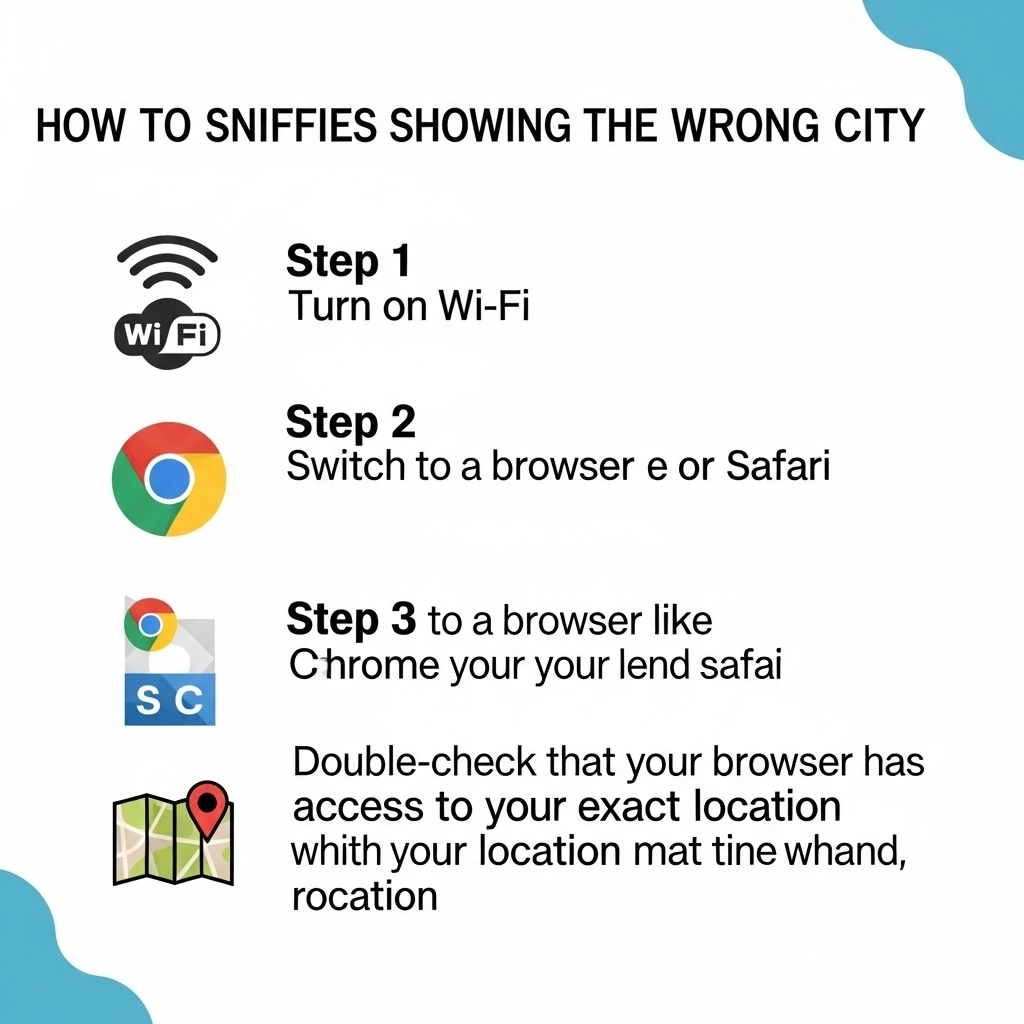
Sniffies uses browser-based geolocation, not your phone’s internal GPS alone. If your app shows the wrong location:
- Turn on Wi-Fi (stronger location accuracy)
- Switch to a browser like Chrome or Safari
- Double-check that your browser has access to your exact location
How to Change Location in Sniffies App
How to Use Travel Mode on Sniffies
How to Block & Unblock Someone on Sniffies
FAQs
Final Thoughts
Learning how to appear on the Sniffies map can drastically improve your experience, whether you’re searching for casual encounters, meeting new people, or exploring the map in real time.
Stay visible, stay safe, and make meaningful connections through this unique location-based social platform.